

Official websites use .gov
A .gov website belongs to an official government organization in the United States.

Secure .gov websites use HTTPS
A lock (
) or https:// means you’ve safely connected to the .gov website. Share sensitive information only on official, secure websites.


Setting up your API Account

In order to establish an API connection with iEdison, an Agency or Organization administrator must:
- Procure a Certificate
- Sign an Interconnection Security Agreement (ISA)
- Create an iEdison System Account
- Maintain a valid Certificate
1. Procure a Certificate
To access REST API services, a system account and a valid NIST-issued PKI client certificate are required.

2. Sign an Interconnection Security Agreement (ISA)
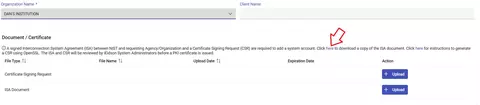
An ISA document is required when creating a system account. When creating an account, the applicant must download a copy of the ISA document, sign it, and then upload the signed copy during the registration process.
The ISA document can be found here or on the "Manage System Account" page in the iEdison application.
3. Create an iEdison System Account
An agency or organization is required to have a System Account User role to access the iEdison API. Before creating a system account, ensure you have the following prepared to upload and add during the account creation: a valid certificate, an executed ISA document, and a contact person.
Complete the following steps to create your iEdison System Account:
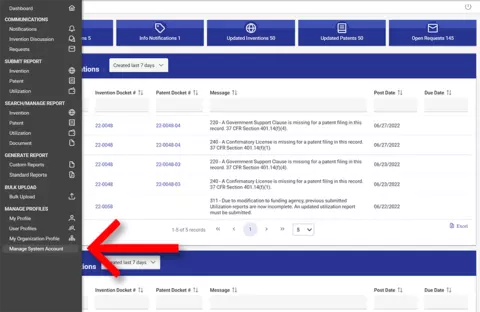
Inside the iEdison application, click "Manage System Account" under "Manage Profiles" on the sidebar menu.
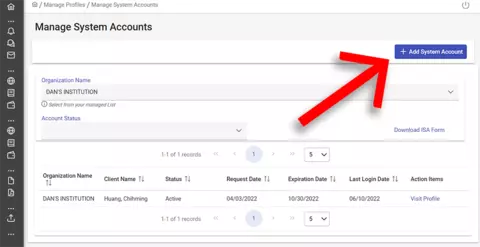
Click the "Add System Account" button.
- Select your Agency or Organization from the dropdown menu and provide the Client Name for the system account.
- Upload the CSR and signed ISA document for the account.
- Complete the Contact Person section of the registration. Use the radio button to select between the options:
- Existing Contact: Person designated as Contact Person for your agency or organization.
- New Contact: New contact person for the system account.
- My Profile: Designated yourself as the Contact Person for the system account.
- Click on the Submit button.
An iEdison Approver user will review your registration and Approve or Deny your System Account registration. You will receive a notification once it is submitted and when the certificate is uploaded.
4. Maintain a Valid Certificate
Once a System Account registration has been approved by an iEdison Approver, agencies or organizations will be able to Create or Update an iEdison report using the iEdison API. Organization and Agency administrators will be responsible for maintaining a valid certificate.
To update an expired or expiring certificate of a System Account, follow the steps below:
- Navigate to "Manage System Account" under "Manage Profiles" in the Sidebar Main Menu.
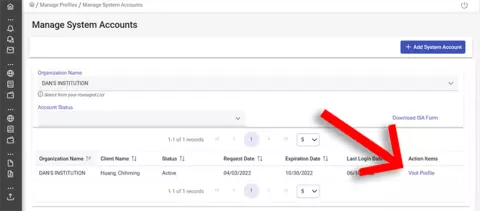
Locate the Organization Name on the System Account table and click on the View Profile link under the Action Items column.
- Generate a new CSR and click Upload.
- Click Save.
You will receive a notification once it is submitted and when the certificate is uploaded.
TROUBLESHOOTING
The following table describes common error messages you may receive when setting up your System Account as well as the possible causes and solutions:
| Type of Issue | Error Message | Possible Cause/Solution |
|---|---|---|
| Connectivity | UnknownHostException | The full URL for the Web Service is incorrect. (Verify the URL that is being called.) |
| Certificate | SSLPeerUnverifiedException | The certificate has not been obtained or configured properly in the calling program. |
| Mapping | Response containing a HTTP 500: “Mapping doesn’t exist for certificate” | Verify that the serial number and authority match the certificate on the caller’s server. |
| Authorization | Response containing a HTTP 500: “User <XYZ> is not authorized to access this operation” | |
| Expired Certificate | Response containing a HTTP 500: “Certificate has expired.” | For help resolving this issue, please contact the administrator of the agency or organization. |
| Inactive Agency/Organization Account | Response containing a HTTP 500: “Agency/Organization has been disabled.” | The agency or organization has been disabled. (Contact the iEdison Helpdesk if you believe the account needs to be re-activated.) |
| Other Exception | Response containing a system exception | For help resolving this issue, contact the iEdison Helpdesk with the date/time of the call, serial number, certificate authority, and the name of the Web Service. |