

Official websites use .gov
A .gov website belongs to an official government organization in the United States.

Secure .gov websites use HTTPS
A lock (
) or https:// means you’ve safely connected to the .gov website. Share sensitive information only on official, secure websites.


NCNR IMS Log In Instructions
NCNR has developed a new information management system, NCNR-IMS. https://ncnrims.nist.gov/. NCNR-IMS is used to request access to the NCNR and NIST, manage training, and submit proposals/requests for neutron beamtime. No data is being migrated from the previous IMS site to the new NCNR-IMS site, so everyone will need to create a new account.
The new NCNR-IMS system joins the VA, SSA, TSA, FSAFeds, and others by requiring Login.gov accounts to log in. You do not have to reside in the US to make an account.
- Users who already have a Login.gov account may use it to access NCNR-IMS.
- Anyone without a Login.gov account will need to create one.
- Federal Employee users will need to use their PIV/CAC card with Login.gov to access NCNR-IMS.
The instructions below will help you create a Login.gov account to access the NCNR-IMS system, if needed.
- Before You Begin
- Step-by-Step Instructions
- Federal Government Users
- Federal Government Users Using Their Personal Email
Before You Begin:
Make sure you have:
- A working email address (If you use a PIV/CAC card, it must be your work email).
- A phone or an authentication app (like Google Authenticator or Authy).
- About 5-10 minutes of uninterrupted time.
Step-by-Step Instructions
1. Visit the NCNR-IMS website: Go to https://ncnrims.nist.gov/ and click the button that says “Log In with Login.gov”
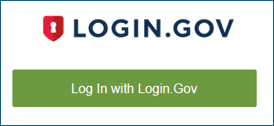
2. Create an account or Log in to Your Login.gov Account
- If you have a .gov or .mil email address, follow the instructions in the Federal Government Userssection below. You will need to use your PIV/CAC card to log in to NCNR-IMS.
- If you don’t have a .gov or .mil email address but have a Login.gov account, use it to log in to NCNR-IMS directly. Complete your NCNR-IMS profile.
- If you don’t have a .gov or .mil email address or a Login.gov account, continue to step 3.
3. Create an Account: Click on the Create an account option, enter your email address (preferably associated with your employer), check the box acknowledging the Rules of Use, and click Submit.
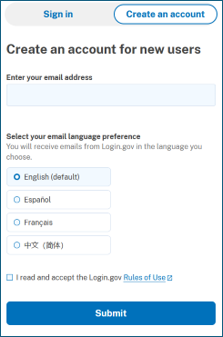
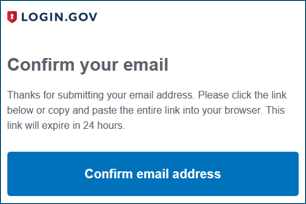
4. Confirm Your Email: Login.gov will send you a confirmation email.
- Open your inbox and find the message from no-reply [at] login.gov (no-reply[at]login[dot]gov)
- Click the “Confirm email address” button inside that email.
- This will take you back to the Login.gov website to continue the setup.
5. Create a Strong Password
Your password must be at least 12 characters long.
- Avoid classics like “Password1234” or your birthday.
- Login.gov encourages long phrases, which are often easier to remember and harder for bots to crack.
6. Set Up Two-Factor Authentication (2FA): Choose at least one authentication method.
- Authentication App (Recommended): Use an app on your phone to generate a six-digit code.
- Security Key: A physical USB device like a Yubikey.
- Phone (SMS/Voice): Receiving a code via text or call. (Note: This is considered the least secure of the three, but it’s the most common.).)
- Backup Codes: The site will generate a list of one-time-use codes. Print these or save them in a secure place. If you lose your phone, these are your only way back in.
7. Login.gov Success!
- Once your 2FA is verified, your account is active and can be used to log in to the NCNR-IMS.
- You’ll receive an email confirming that you connected your Login.gov account to NCNR-IMS.
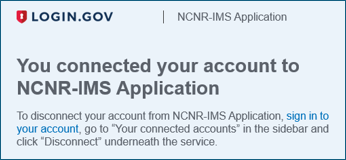
8. Complete your NCNR-IMS profile: After you have logged in to NCNR-IMS you can complete the rest of your user profile by filling out the required fields which are marked by a red asterisk and hit “Save Changes” at the bottom.
Federal Government Users
Note: These instructions apply only to users with a .gov or .mil email address. Other users follow the steps above. Federal Government users must log in to NCNR-IMS with their PIV/CAC card but will be asked by Login.gov to add a password to their account for recovery purposes.
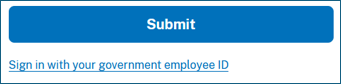
1. Sign In with Your Government employee ID: Click the link under the Submit button that says, “Sign in with your government employee ID”. This will prompt you to use your PIV or CAC card to log in.
2. Smart Card Authentication
Insert your smartcard (PIV or CAC) and click the “Insert PIV/CAC” button
- Select your identity. This is usually the one that has your name on it.
- If you have used Login.gov before with this PIV/CAC card, enter your PIN and you will be logged in to NCNR-IMS. Complete your IMS profile.
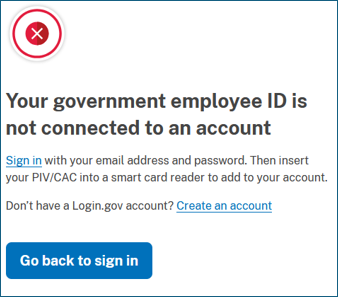
- If you have never used Login.gov with this PIV/CAC card, click the Create an account link
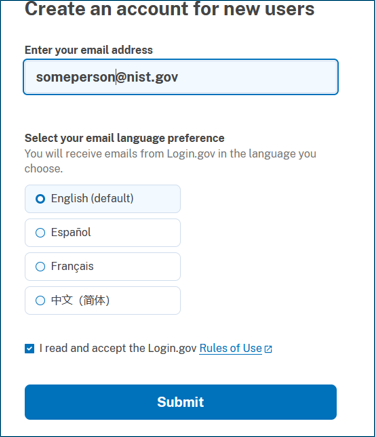
3. Create a Login.gov account with your PIV/CAC card: Enter your .gov or .mil email address to begin account creation if needed. And click the checkbox to accept the Rules of Use. Click Submit.
4. Confirm Your Email: Login.gov will send you a confirmation email.
- Open your inbox and find the message from no-reply [at] login.gov (no-reply[at]login[dot]gov)
- Click the “Confirm email address” button inside that email.
- This will take you back to the Login.gov website to continue the setup.
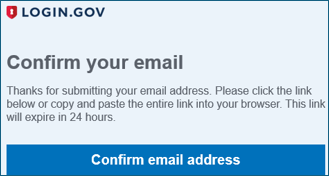
5. Create a Strong Password: Your password must be at least 12 characters long.
- Avoid classics like “Password1234” or your birthday.
- Login.gov encourages long phrases which are often easier to remember and harder for bots to crack.
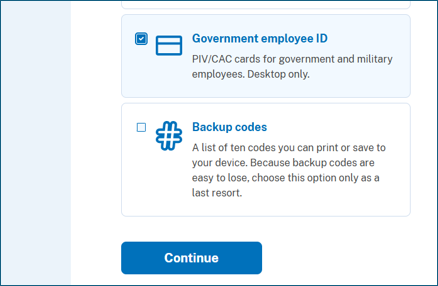
6. Set Up Two-Factor Authentication (2FA): Choose “Government employee ID” and click Continue.
7. Give it a nickname: Call it whatever you want so you’ll remember what it is if when you go to Login.gov and look at your profile. Click “Insert PIV/CAC”
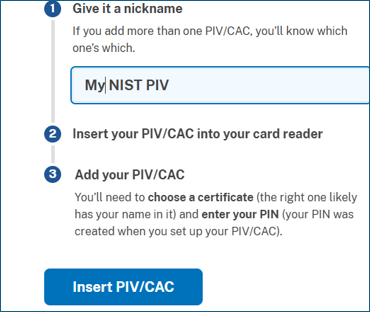
8. Choose your name from the list of certificates
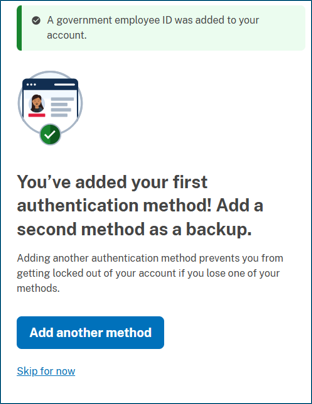
9. Enter your PIN and see the Success page.
Optional: If you’d like to add backup codes you can do that to get into Login.gov in the future, but logging in to the IMS system will require your PIV, not password or backup codes. If you don’t want to add another 2FA method, you can click “Skip for now”. You will get an email saying that a government employee ID was added to your Login.gov account.
10. Log in to NCN-IMS
Go back to https://ncnrims.nist.gov and log in using your new Login.gov account with your PIV card.
11. Complete your NCNR-IMS profile
After you have logged in to NCNR-IMS you can complete the rest of your user profile by filling out the required fields which are marked by a red asterisk and hit “Save Changes” at the bottom.
Federal Government Users Using Their Personal Email
Federal Government users who have Login.gov accounts but used their personal email addresses to set it up rather than their .gov or .mil address:
It’s possible to have multiple email addresses associated with a Login.gov account. In fact, it’s probably a good idea to associate your Login.gov account with both a personal and .gov email address in case you are using it for logins to multiple federal services that you would like to keep accessing if you separate from Federal service.
Follow the instructions in the link below for adding email addresses to your Login.gov account and for picking which email address will be presented to NCNR-IMS when you log in there. Look over the section labeled “How do I choose which email gets shared with a partner agency I connected with?”
https://www.login.gov/help/manage-your-account/change-partner-email-address/