

Official websites use .gov
A .gov website belongs to an official government organization in the United States.

Secure .gov websites use HTTPS
A lock (
) or https:// means you’ve safely connected to the .gov website. Share sensitive information only on official, secure websites.


Queue
The previous version of The Queue has been replaced. Much of the general outline of the document below is true, however some of it is out of date. We will replace this with a new document describing the new Queuing system when time allows.
Functionality
The queue is a tool used by the NICE server to manage commands and has the ability perform certain tasks sequentially. This is useful for users running an experiment because they need to put the instrument into a series of states (sometimes repeatedly) by moving motors, aligning the sample, adjusting the temperature of the sample, etc. Likewise, they need to perform neutron counts while in these various instrument states. As such, the queue is a major component of automating experiments run at the NCNR.
The queue only accepts queued commands, whether singularly or as part of a sequence of commands. Commands can be broken down into two types: immediate commands and queued commands. Immediate commands are generally commands that query the system or carry out actions that do not involve manipulation of real hardware. An example of this is the read command, which directly polls the hardware for values of specified nodes.
Queued commands, on the other hand, generally manipulate real (and simulated) hardware by moving motors, adjusting temperature controllers, adding/removing/ calibrating devices, running scans, etc. Commands that manipulate the hardware are generally performed sequentially not only to conform to experimental methodology, but also to prevent instrument wreckage and, most importantly, ensure participant safety.
Like all queues in programming, the NICE queue is a first-in-first-out (FIFO) data structure. This means that the oldest (or first) entry in the queue is processed first: “First come, first served.”
To begin illustrating this property of the queue, let’s use the example of moving two motors.

The first move command is added to the queue and, because it’s the only command, it runs immediately. The second command is also added but does not and will not run until the first move command finishes. This is true for all commands in the queue: you can queue up multiple commands while the queue is already running a command and they will run one-by-one in the order they were added.
Commands can be added to the queue by:
- typing and running a command from the command line.
- dragging finished commands in the queue.
- copying and pasting commands in the queue (more on this in the Features).
- running them as part of a sequence, trajectory, or script.
Dragging is a very useful way of repeating a command, not only because it doesn’t require any typing, but also because it allows you to place the copied command anywhere within the sequence on un-run queued commands. More on dragging later.
There are several indicators for telling apart running commands from un-run and completed commands.
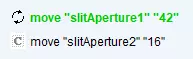
- A command that is currently running is green.

- Running is also indicated by an icon with two arrows following each other in a circular fashion.
- The time remaining for the command to run is found in parentheses next to the command name, regularly updating.
- A command that has finished running becomes greyed out and check-marked.

- Queue history is displayed chronologically and is shown in the order that commands run were completed.
- A command that has yet to run is black.

If commands haven’t been run yet, then you can reorder them by dragging and dropping them.
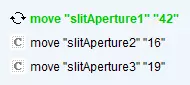


All warnings and errors will show up in the console; however, commands in the queue can also show warnings and errors. Errors will propagate to a visible node in the queue. If you are running a trajectory, which may have multiple levels of nested commands, then you will have to expand through these levels to find exactly where the error occurred.
One command that is exclusive to the queue is the sleep command.
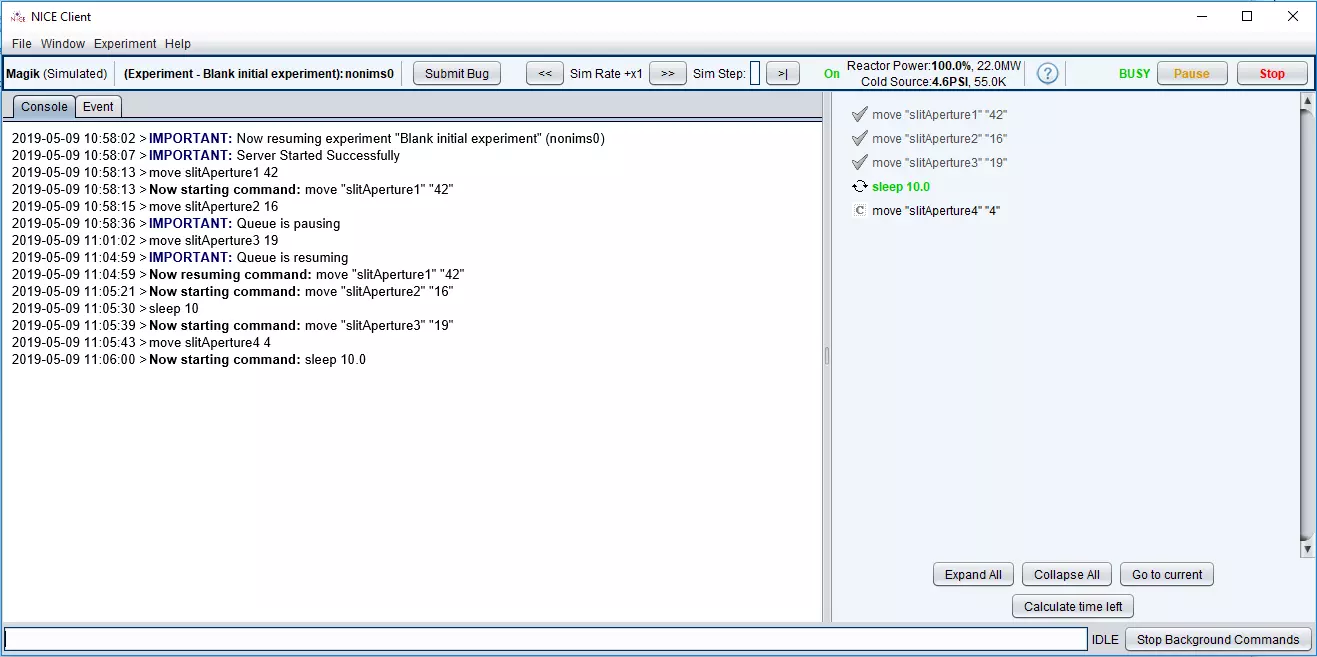
Typing sleep followed by the desired number of seconds will cause the queue to wait for the specified period.
Features
The queue has several built-in features to make it easier to use. This includes a section of the status bar and click operations on queued commands.

The right-most section of the console status bar is devoted to the queue. It includes a word identifier for the queue state and two usa-buttons, one for pausing/resuming the queue and one for stopping it. Pause/Resume and Stop are the primary queue operations and by residing in the status bar, they are made available in every window.
A breakdown of the Pause/Resume and Stop usa-buttons:
- Pause/Resume
- If a command is currently running, the Pause usa-button issues a pause command to create a suspended state.
- If you pause the sleep command, then it won’t go to next command but will subtract pause time from sleep time.
- If you pause the move command, then motors will stop. When resumed, they will continue moving towards their destinations from the position they were paused at.
- If you pause the count command, then it will stop counting. When resumed, it will continue counting from the point it left off at (unless counting in time-slicing mode).
- A count cannot be paused in time-slicing mode – it will simply end.
- If a command is currently running, the Pause usa-button issues a pause command to create a suspended state.
- Stop
- Cancels the currently running command and the remaining commands in the queue.
A breakdown of the word identifiers used in the status bar:
- The word BUSY is used to designate that the queue is currently running.
- The word IDLE is used to designate that the queue is stopped.
- The word SUSPENDED is used to designate that the queue has been paused.
Right-clicking a command will open a drop-down list of operations that can be performed on the selected (i.e., right-clicked) command.
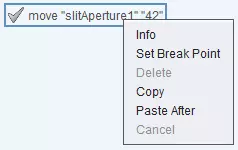
These include:
- Info
- Selecting this will open a new window with information about the command. This information includes the command’s ID, name, state, start time, end time, full running time, and any dryrun information present.
- The command state refers to whether the command is currently running or finished. If running, then the time that was remaining until the command finished at the time of the info window opening is displayed.
- Selecting this will open a new window with information about the command. This information includes the command’s ID, name, state, start time, end time, full running time, and any dryrun information present.
- Set/Clear Break Point
- Selecting this will tell the queue to pause before the selected command starts running.
- When the user chooses for the queue to resume, it will do so from the selected command as well.
- The Resume usa-button in the status bar must be selected to resume the queue.
- Delete
- Selecting this will tell the queue to delete the selected command from its lineup.
- Only commands that have not been run yet can be deleted from the queue.
- Copy
- Selecting this will tell the queue to copy the selected command from its lineup.
- This command is essentially cached for the Paste After operation to make use of.
- All commands (whether running, un-run, or finished) can be copied.
- Selecting this will tell the queue to copy the selected command from its lineup.
- Paste After
- Selecting this will tell the queue to paste a cached command after the selected command.
- Only a running or un-run command can be pasted after.
- Pasting after a finished command would change the queue history and this is not permitted.
- Cancel
- Selecting this will cancel the currently running command.
- This is the same as hitting the STOP usa-button from the status bar.
- The triangle-encapsulated exclamation mark icon and the word IMPORTANT will appear as a WARNING next to the cancelled command.
- Right-clicking and selecting Info on the cancelled command will show that the command information has been updated with a “Runtime Errors” section and an explanation that the command was interrupted by a stop.
- Un-run commands cannot be cancelled because a command that is not running cannot be stopped.
- However, un-run commands can be deleted ahead of time.
- Finished commands cannot be cancelled because they are no longer running.
- This is the same as hitting the STOP usa-button from the status bar.
- Selecting this will cancel the currently running command.
The right-click operations can also be used in conjunction with some more subtle features of the queue.
- Selecting and affecting multiple commands is possible.
- Hold the Ctrl key while clicking on commands to enable this feature.
- Once selected, right-click operations can be used on multiple commands.
- Dragging and dropping.
- Works the same way as with single commands.
- Important: it does not matter which order you select the commands for reordering.
- Once dragged-and-dropped, the multiple commands will retain the order that they originally appeared in the queue.
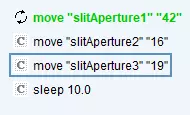
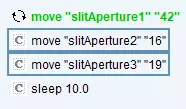
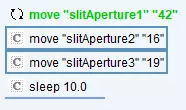
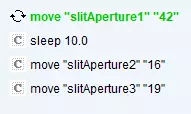
- Once dragged-and-dropped, the multiple commands will retain the order that they originally appeared in the queue.
- Copying and pasting multiple commands.
- The same rules as for single command copying holds:
- All commands (whether running, un-run, or finished) can be copied.
- Only a running or un-run command can be pasted after.
- You must select a SINGLE command to paste after.
- Pasting after a finished command would change the queue history and this is not permitted.
- Important: it does not matter which order you select the commands to be copied-and-pasted in.
- Once pasted, the commands will appear in the same order that they appear in the queue.
- This mirrors how the ordering of multiple dragged-and-dropped commands will appear in the queue.
- Once pasted, the commands will appear in the same order that they appear in the queue.
- The same rules as for single command copying holds:
- Deleting multiple commands.
- Select all the commands you wish to delete, and right-click Delete.
- The same deletion rules apply for multiple commands as for single commands.
- Setting/clearing break points for multiple commands.
- Select all the commands you wish to setup break points for, and right-click Set Break Point.
- Clear Break Point works in the same way.
- The same break point rules apply for multiple commands as for single commands.
Running Trajectories
Go to the Queue section in the Trajectory Guide – Reference for a detailed write-up of how the queue interacts with trajectories.